After processing data with built-in Python, export results. Exports can be Python objects or Excel values. Note: Built-in Python cannot export data to files—only to Excel worksheets.
Export as Python Objects
In the worksheet shown in Figure 4-9, cells A1:A6 contain sample data. Click cell D2, enter =PY( in the formula bar to enter Python mode, and input ser = xl('A1:A6'). Press Ctrl+Enter to retrieve the data. The result (Figure 4-9) returns a DataFrame object.
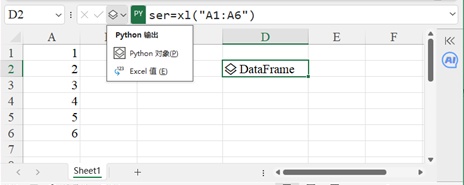
Figure 4-9
Click the card dropdown (left of the formula bar) to see two output options: Python Object (default) and Excel Value. Python objects include DataFrames, Series, ndArrays, Lists, Tuples, etc.—the cell displays the object type (e.g., DataFrame).
Click the card icon before the Python object to open a panel showing details (value, string representation, data type, type name) (Figure 4-10). The Anaconda logo confirms Microsoft’s collaboration with Anaconda for built-in Python.
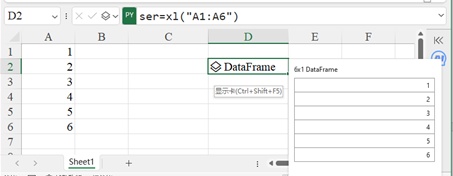
Figure 4-10
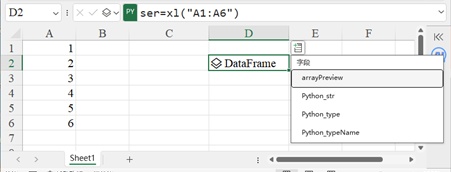
Figure 4-11
Click the icon in the top-right corner of the Python object cell (Figure 4-11) to open a menu with options like arrayPreview (preview array), Python_str (string representation), Python_type (object type), and Python_typeName (type name). Unlike the preview panel, these options output results to the worksheet.
arrayPreview: Outputs the DataFrame content to the right of the cell (Figure 4-12).
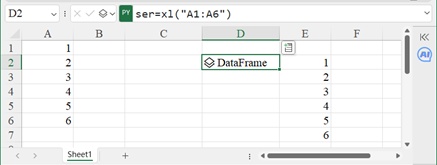
Figure 4-12
Python_str: Outputs the DataFrame as a single-line string with row indices (Figure 4-13).
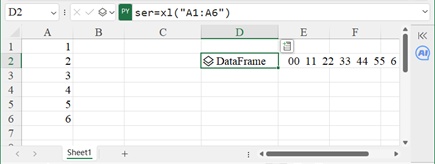
Figure 4-13
Python_type: Returns the object’s type (e.g., <class 'pandas.core.frame.DataFrame'>).
Python_typeName: Returns the type name (e.g., DataFrame).
For scalar results (e.g., sum), the value is displayed directly in the cell without type information. For example, in cell D4, enter ser[0].sum() in Python mode and press Ctrl+Enter to get the sum 21 (Figure 4-14).
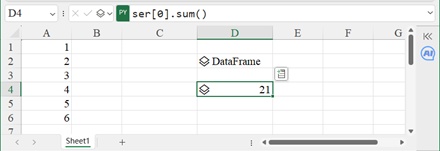
Figure 4-14
Export as Excel Values
In the dropdown menu (Figure 4-9), select Excel Value to return results as Excel-native values (Figure 4-15). The result is displayed directly in the worksheet without type names or card icons.
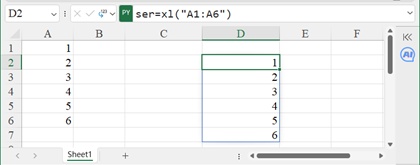
Figure 4-15